How to do it
- On the planning phone, choose I help someone else and create or select the person.
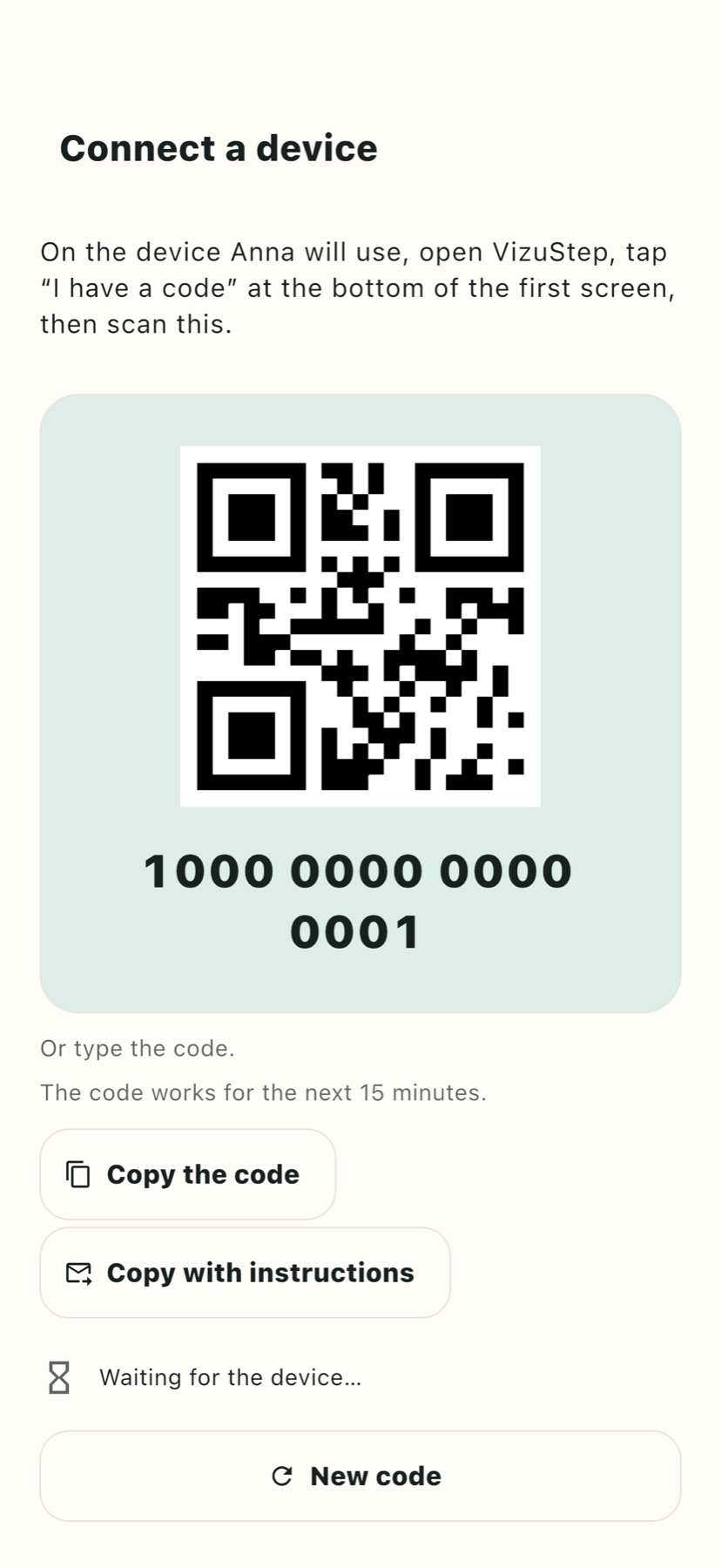
- Open Connect device for that person and display the connection code or QR.
- On the other phone or tablet, open VizuStep and choose I have a code.
- Scan the QR or enter the displayed code. If it has expired, create a fresh code on the planning phone.
- Finish the connection confirmation rather than leaving halfway through. Pairing does not require a PIN.
- Check the device in the person's device list, then open a simple routine on it. Make sure the intended person and cards are shown.
Make it easier to use
Both devices need an internet connection for initial pairing and synchronisation. Afterwards, previously loaded routines and media can be used offline. When testing, keep the planning phone nearby so you can notice a missing picture or an unclear instruction before relying on the setup.
Use the displayed device model and name to distinguish phones and tablets. Optional exit protection and browsing preferences are caregiver settings; they are separate from the connection code. For privacy, do not publish the QR or send it to someone you do not intend to connect.